
Broadcast Monitor · Advanced Monitoring
Professional brings two-source comparison, advanced color analysis, and signal metadata into your monitoring workspace.
Professional overlays two sources in one Picture, Waveform, or Vectorscope view. Complementary colors identify each input; a Mix display blends them. Instead of remembering one camera while looking at the next, compare their behavior in the same place.
During rehearsal: frame the same subject on both cameras, freeze one as your reference, and adjust the other. Picture and waveform offsets help align the subject horizontally; picture comparison also allows vertical alignment.
Freeze either source independently, isolate picture channels, and zoom or pan the picture for a closer inspection. Waveform magnification helps examine a smaller range of signal levels.
The overlay compares the latest available frames, without timestamp synchronization. Use a steady subject for camera matching; movement or different capture delays can create differences unrelated to exposure or color.
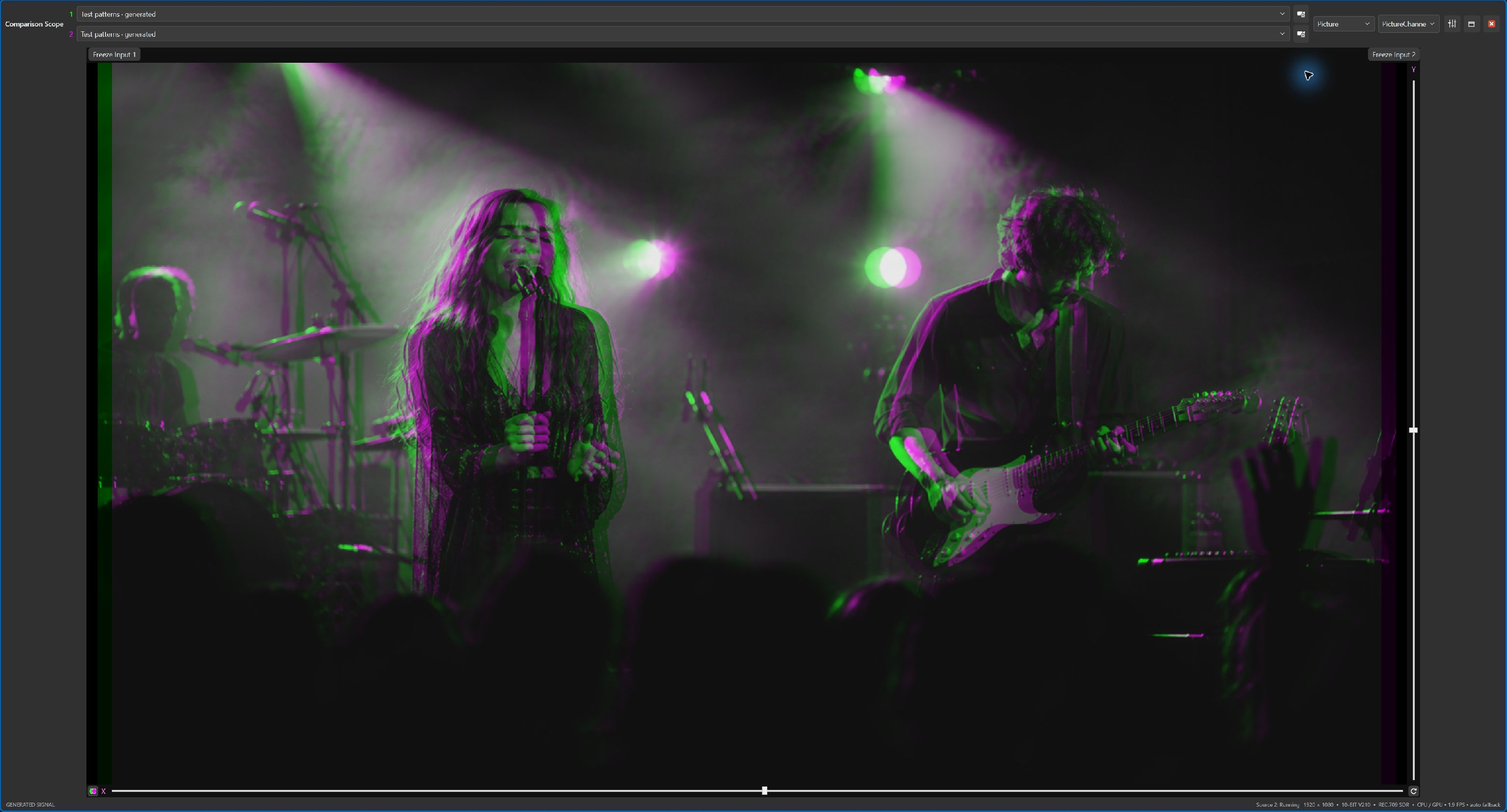
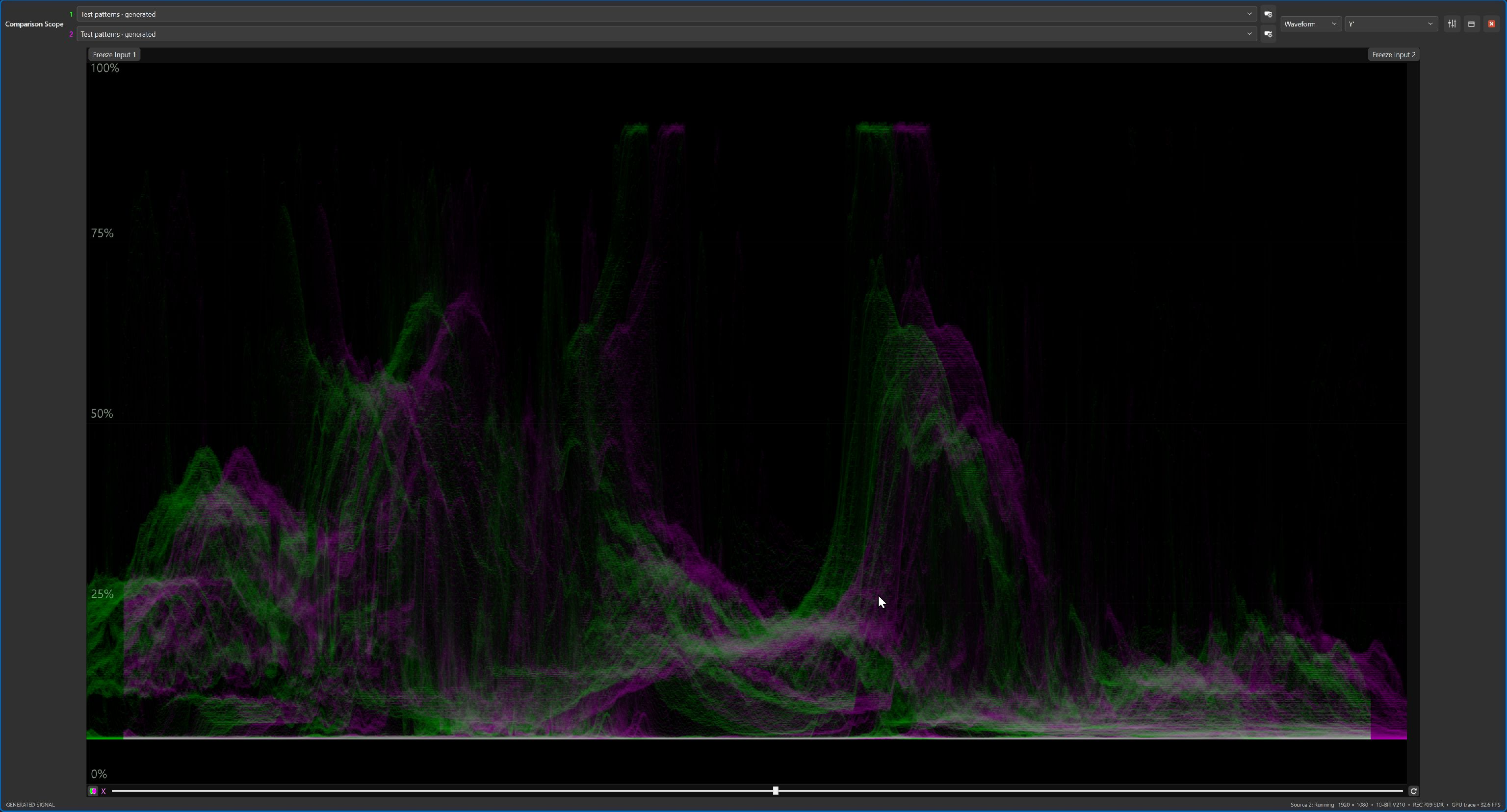
Click any screenshot to open the larger view and inspect the controls and traces.
Included in Professional, these views answer different questions about the same signal. Keep the ordinary picture nearby so measurements stay connected to your creative intent.
This view preserves source chroma while holding encoded brightness at a fixed middle level. Removing brightness variation from the display makes color differences easier to inspect.
Try it when matching cameras: look for a color cast on a neutral subject or differences in stage-light color, then return to the normal picture to judge the result.
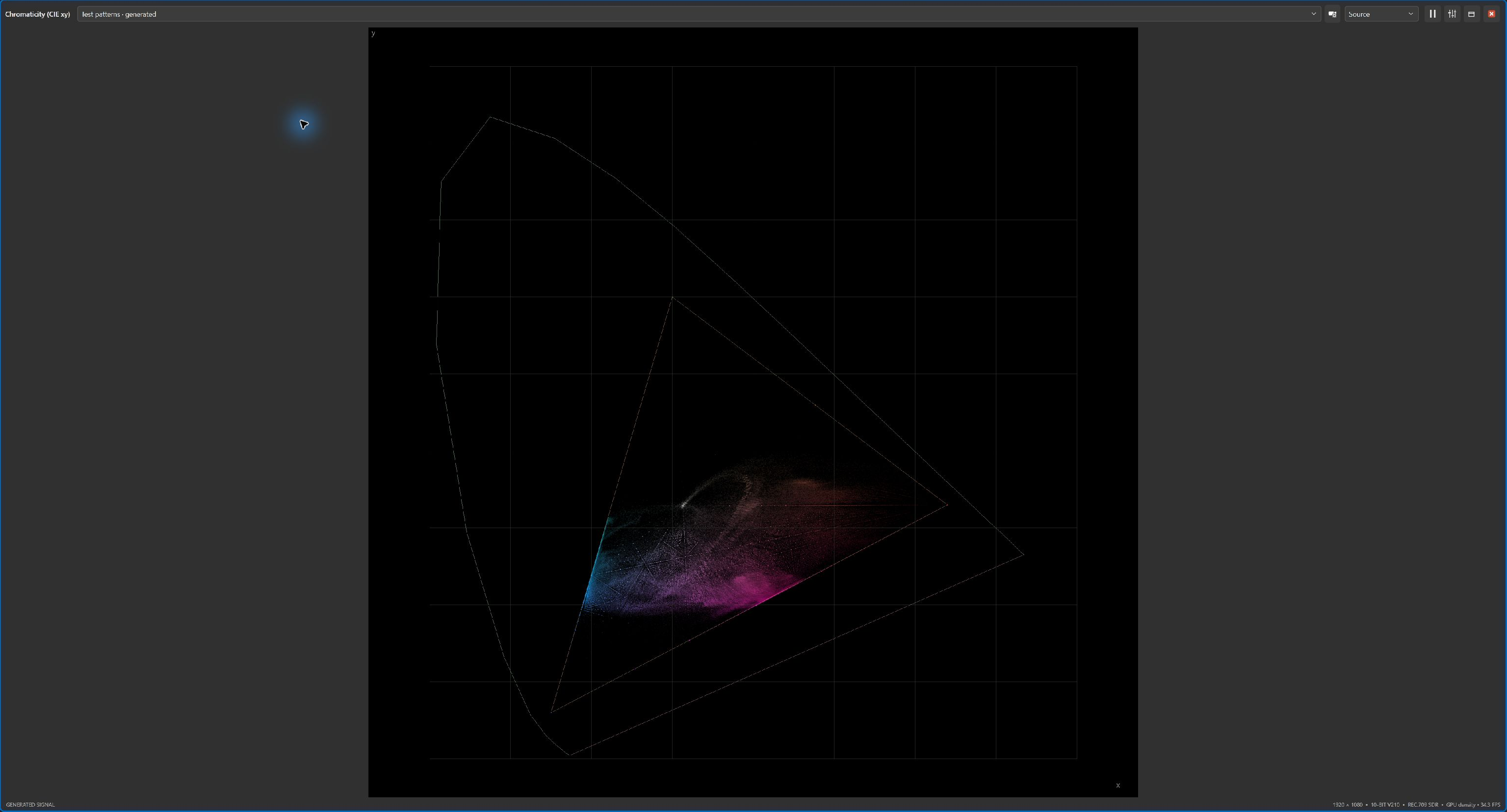
Chromaticity places colors on a two-dimensional map with a gamut triangle as a reference. A gamut describes a color space's range of colors; the plot helps you see where the signal falls relative to that reference.
Follow source metadata or choose a reference such as Rec.709, P3, or Rec.2020. Unknown source metadata defaults to Rec.709, so confirm the source interpretation before drawing conclusions.
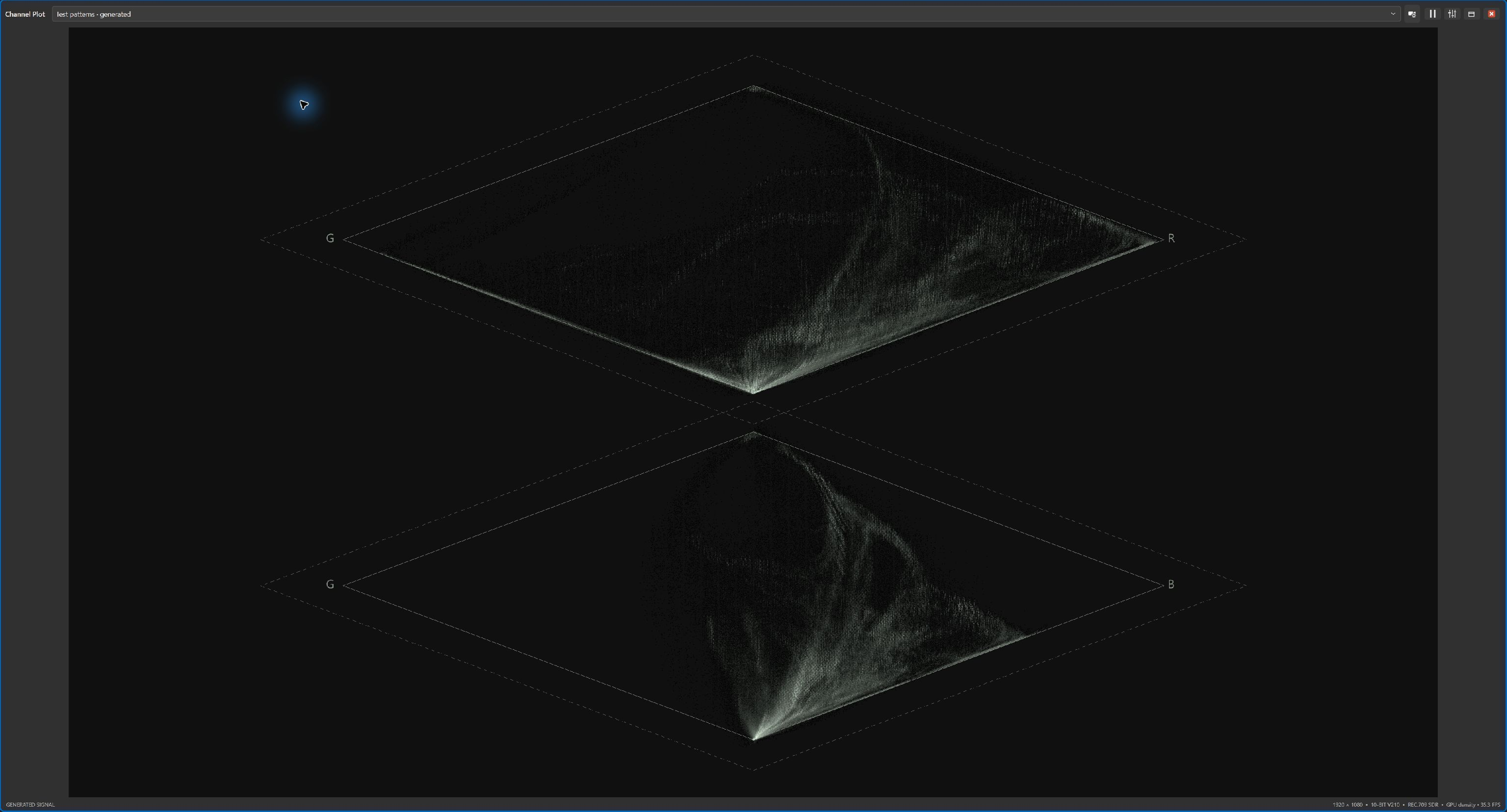
The double-diamond display compares green with red in the upper diamond and green with blue in the lower one. Traces outside the reference diamonds reveal RGB values outside the nominal range.
Try it with vivid lighting or graphics: investigate excursions that a pleasing picture might hide. Values outside the range remain visible in the analysis instead of being clipped away before plotting.
Professional includes a Caption Data scope for supported CEA-608/708 text, plus an optional picture overlay with caption-channel or service selection. Watch text changes and clears, with source timecode when available, to help check that the expected captions are arriving.
This is plain-text monitoring, not a complete reproduction of broadcast caption styling and positioning. The picture overlay is for on-screen inspection and is not burned into output video.
Timecodes and other metadata can travel alongside a video frame. Professional's Ancillary Data scope lists the fields supplied by the source, highlights changed values, and retains a rolling minute of snapshots. Browse a moment or double-click a field to examine its history while capture continues.
Blackmagic capture can expose timecodes and SDI ancillary packets, including supported caption payloads. Available fields depend on the signal and adapter. The current file and OpenCV network decoding path does not expose captions or ancillary metadata.
Continue the tour, or choose any topic from the navigation above.