
Workflow reference
Camera controls & performance
Use the controls and worked examples together. Individual sections identify edition-specific tools.
What kind of computer makes a useful scope station?
FreeExpressProfessionalMatch the computer to the job. A few HD views are a different workload from several UHD sources, large scope windows, full-resolution traces, and simultaneous video output.
Start with the essentials
- Windows x64 and a modern multicore Intel or AMD processor
- Hardware graphics supporting Direct3D feature level 11.0 or later, with a current vendor driver
- A compatible capture device or network source for live video
For Blackmagic capture, use a supported DeckLink or UltraStudio device with Desktop Video 14.4 or newer. Check the exact resolution, frame rate, connection, and bit depth you need.
For an HD monitoring workspace
As a practical planning target, start with a recent multicore PC, 16 GB of system RAM, and capable hardware graphics. A dedicated GPU gives more room for multiple scopes; integrated graphics should be evaluated with your actual sources and layout before relying on them for a show.
Begin with one HD source and the views you need. Add scopes while watching each pane's reported update rate and the application's responsiveness.
For UHD and larger layouts
Plan around a desktop-class multicore CPU, a dedicated GPU, and 32 GB of system RAM as a starting budget. Several sources, full-resolution CRT traces, larger plots, decoding, and Professional video output all add work.
CPU performance still matters: some formats and analysis modes use CPU processing. Extra memory alone will not fix a CPU or GPU bottleneck.
These are planning recommendations, not certified minimum specifications or frame-rate guarantees. Development GPU checks have run on an NVIDIA GeForce RTX 4070 Ti SUPER; that is a tested reference, not a required purchase. Integrated-GPU and lower-end configurations have not yet been qualified in the documented performance tests.
The input path matters as much as the computer
For high-bit-depth SDI or HDMI measurements, choose capture hardware and a signal format that preserve that precision. A USB camera or network decoder may deliver an 8-bit converted picture even when the original camera signal had more detail. A faster GPU cannot recover information lost before capture.
Confirm that your computer has the connection and bandwidth required by your capture device. For network sources, allow enough network capacity for the formats and number of streams you plan to receive.
Check your real show workload
Use generated test patterns and the bundled sample photographs to learn and configure the workspace, then evaluate representative video with your intended sources, scope sizes, and other production applications running. Color bars are simpler to render than some detailed or noisy footage.
Useful exposure and camera-matching scopes do not always need to update on every source frame. Half frame rate or density rendering can reduce the workload; use full-rate updates when following rapid changes matters. Tell us your sources and intended layout for help planning a setup.
Careful measurements. Efficient processing. Better-informed decisions.
FreeExpressProfessionalA scope earns its place in a production by showing meaningful measurements and keeping up with the work. Broadcast Monitor is developed with attention to both signal accuracy and the cost of processing every frame.
Measure the signal behind the picture
For supported native capture formats, measurement scopes read the source samples directly, preserving available 10-bit and 12-bit precision instead of measuring an 8-bit picture preview. Display conversion stays separate from signal analysis.
The precision available depends on the source and capture path. A source delivered as 8-bit video remains 8-bit; the scopes do not invent missing detail.
Take the math seriously
Color calculations account for supported Rec.601, Rec.709, and Rec.2020 signal metadata. Brightness modes distinguish encoded luma from linear-light luminance, so the selected measurement has a defined meaning.
Automated checks compare optimized calculations with reference results, including native sample values, color conversions, and scope accumulation. GPU checks also compare supported measurements with CPU references.
Spend processing power where it helps
Views of the same input share capture, and supported paths reuse conversions and GPU uploads. GPU acceleration and multicore CPU processing divide the work according to the selected tool and format. Supported audio phase, waveform, spectrum, waterfall, and level-history views also use GPU rendering, helping large displays remain responsive without repeatedly drawing their traces on the CPU.
When a scope cannot keep up, it takes the latest available frame instead of building a growing queue of old images. That keeps monitoring focused on what is happening now.
Full input resolution analyzes every source pixel. Optional reduced sampling trades spatial coverage for speed; it can miss small details. Half frame rate lowers how often waveform and vectorscope views update without changing their spatial sampling. Learn how to balance detail and responsiveness.
Choose the detail and update rate your task needs.
FreeExpressProfessionalSignal precision, spatial sampling, and update rate are different things. Understanding the controls helps you keep useful measurements on screen while managing your computer's workload.
Maximizing a pane also helps concentrate processing on the view you are using. Hidden scope analysis pauses while input connections, file playback, and enabled audio listening continue. Restore the layout to resume current readings; the hidden meters do not keep measuring during suspension. Panes required by running outputs continue rendering even when hidden or on another workspace.
Preserve small details
Full input resolution includes every source pixel in the analysis. Reduced sampling processes fewer positions to reduce work, so a tiny highlight or brief spatial detail may be missed. Keep full resolution when those details matter.
Adjust how often scopes update
Half frame rate makes waveform and vectorscope views update at half the input cadence, up to 30 updates per second. It leaves spatial sampling unchanged. It can suit a steady camera-matching task, while rapid changes benefit from more frequent updates.
Choose the rendering style
CRT trace (GPU) connects selected samples into traces. Turning it off uses density rendering, which can reduce the workload. Connecting samples changes the visualization; it does not add measured signal detail. Supported renderers can also fall back when necessary.
Watch the update rate in each pane and evaluate your actual video, not just a test pattern. Source resolution, image complexity, plot size, scope count, and other applications all affect performance. See the computer and capture-hardware guidance.
Install the runtimes your sources need.
FreeExpressProfessionalThe Windows x64 installer bundles .NET. Blackmagic capture and output require Desktop Video 14.4 or newer; NDI input and output require the separate NDI Runtime. RTSP/RTSPS and SRT inputs, plus Recorder in Express and Professional, require compatible external FFmpeg; setup can check or help install it. AJA hardware integration and DJP Transport are experimental. Confirm the device, driver, format, and workload before relying on them for a show.
HDR analysis uses source values and transfer metadata. The current composed monitoring output is SDR and does not supply HDR signaling. Generated HDR photo modes are explicitly synthetic encodings of bundled SDR samples.
Compact camera controls attached to your scopes
FreeExpressProfessional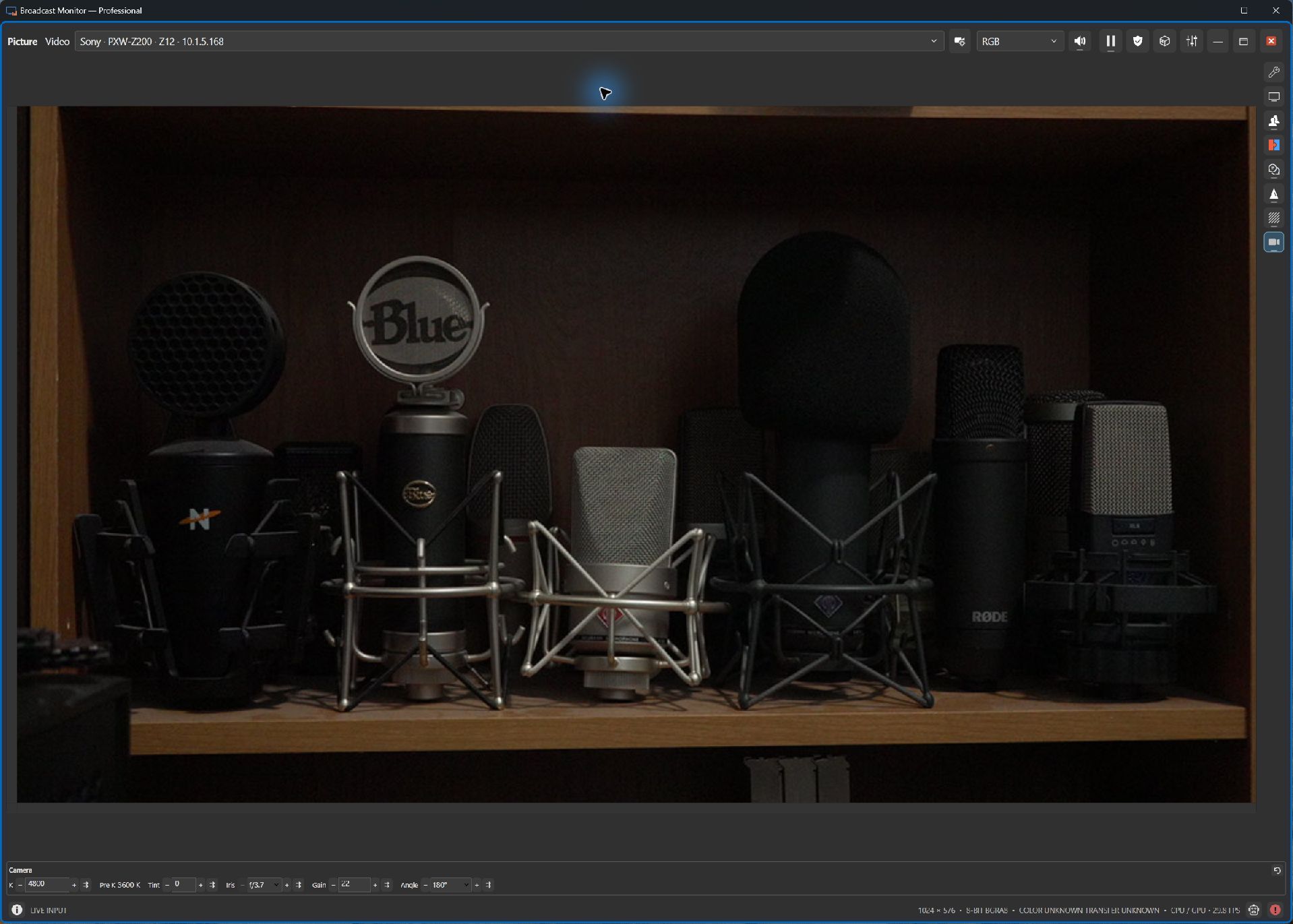
The right-hand toolbar shows a camera toggle only for compatible video inputs. Comparison Scope uses numbered camera 1 and 2 toggles, each shown only for its compatible input. Click to show or hide controls; the checked state follows the selected camera. Attach the independent Camera control pane from Scope settings, or choose Camera controls in the scope context menu. Dock it at the top, bottom, left or right, or float it in a small movable window. Choose Auto, Horizontal or Vertical orientation; Auto uses vertical controls on side attachments and a wrapping horizontal strip elsewhere. Horizontal layout groups each label tightly with its value and leaves a clearer gap between settings. Read-only values occupy only their needed width. Narrow fields are sized for each parameter, with minus/plus buttons immediately beside the value to apply one allowed choice or numeric increment. Camera controls are separate from source configuration.
Camera values and lock states update automatically from Sony SDK property-change notifications, with a two-second fallback poll. Incoming updates wait during numeric editing or an open dropdown, then catch up without writing settings back. Dropdown choices apply immediately; Tab or Shift+Tab commits numeric edits and continues navigation; Enter also applies them. Invalid values and failed writes keep the edit and keyboard focus for correction or retry. A tiny double-arrow icon beside each editable parameter syncs that value to this camera and other attached cameras. Tooltips identify each action; the small status mark contains results and errors. Each camera validates its current capabilities, and successful changes are not rolled back.
Workspace files remember orientation, attachment and primary/source-2 selection, without replaying camera settings. Available controls depend on camera capabilities and mode. Confirm camera controls on your camera and firmware before relying on them during a show.
See where processing time goes.
FreeExpressProfessionalOpen Workspace menu > Performance Summary in any edition while monitoring continues. Search the live session or inspect a saved session by operation, device, format, or mode. Filter by power state, sort timing columns, and select a row for workload details.
Sample counts, mean time, spread, and an approximate P95 upper bound help investigate your actual setup. CPU wall time, GPU intervals, and decoder delivery measure different boundaries and can overlap; adding rows does not give total frame time. Sparse samples are preliminary, and the display does not predict capacity or change Auto selection.
Turn off Update live to hold the displayed snapshot while collection continues, or use Refresh. Compact summaries stay local, retaining up to eight recent sessions. Media and source addresses are not uploaded.
Troubleshoot a Sony camera connection
FreeExpressProfessionalCompare the same camera on a working and failing computer by copying network reports from each. Reports include active adapters, interface metrics, Sony runtime paths and file fingerprints. Connection status distinguishes a monitoring request from active delivery and shows actual destination ports. These observations identify the failure stage without automatically blaming a firewall, adapter or camera.
Network checks also show Windows excluded UDP port ranges. These reservations can prevent local socket binding even when the firewall is disabled. The report leaves reservations and network services unchanged.
Test network / firewall… is available before connecting. Check the local adapter, ping, SSH port reachability, Windows Firewall profiles and rules for the running app. These checks do not prove whether video packets were dropped.
Add camera exception… requests Windows administrator approval for an inbound UDP rule limited to this executable, camera IP, local IP and Sony receive ports 55001–55999 across all network profiles. Remove camera exception… removes that app-owned rule. Explicit block rules and organization policy may override it. Retry the connection after adding the exception; the firewall stays enabled.
After a failed Sony connection, choose Troubleshoot connection… to view and copy a report with the selected and Windows-routed local IPv4 addresses, monitoring quality, application version and original SDK evidence. Reports contain network addresses; review before sharing.
Discovery and authentication can succeed before video delivery starts. Sony code 131195 means monitoring start failed; it does not identify the cause or prove a firewall block. Compare firmware and operating modes with a working camera, close competing monitoring clients and retry fixed Standard or Low monitoring quality. When delivery is active without images, Check firewall provides policy evidence and current UDP ports.