
Scope guide · Signal investigation
Video Level / Gamut
Connect native-code, RGB-range and target-gamut excursions to visible regions of the picture.
ProfessionalLearn & Reference / Scope library / Video Level / Gamut
Which pixels are behind the warning?
Add this view from Add scope > Video Level / Gamut, then choose the input you want to inspect. Use the pane's i button for its in-app reading guide.
Read this example.
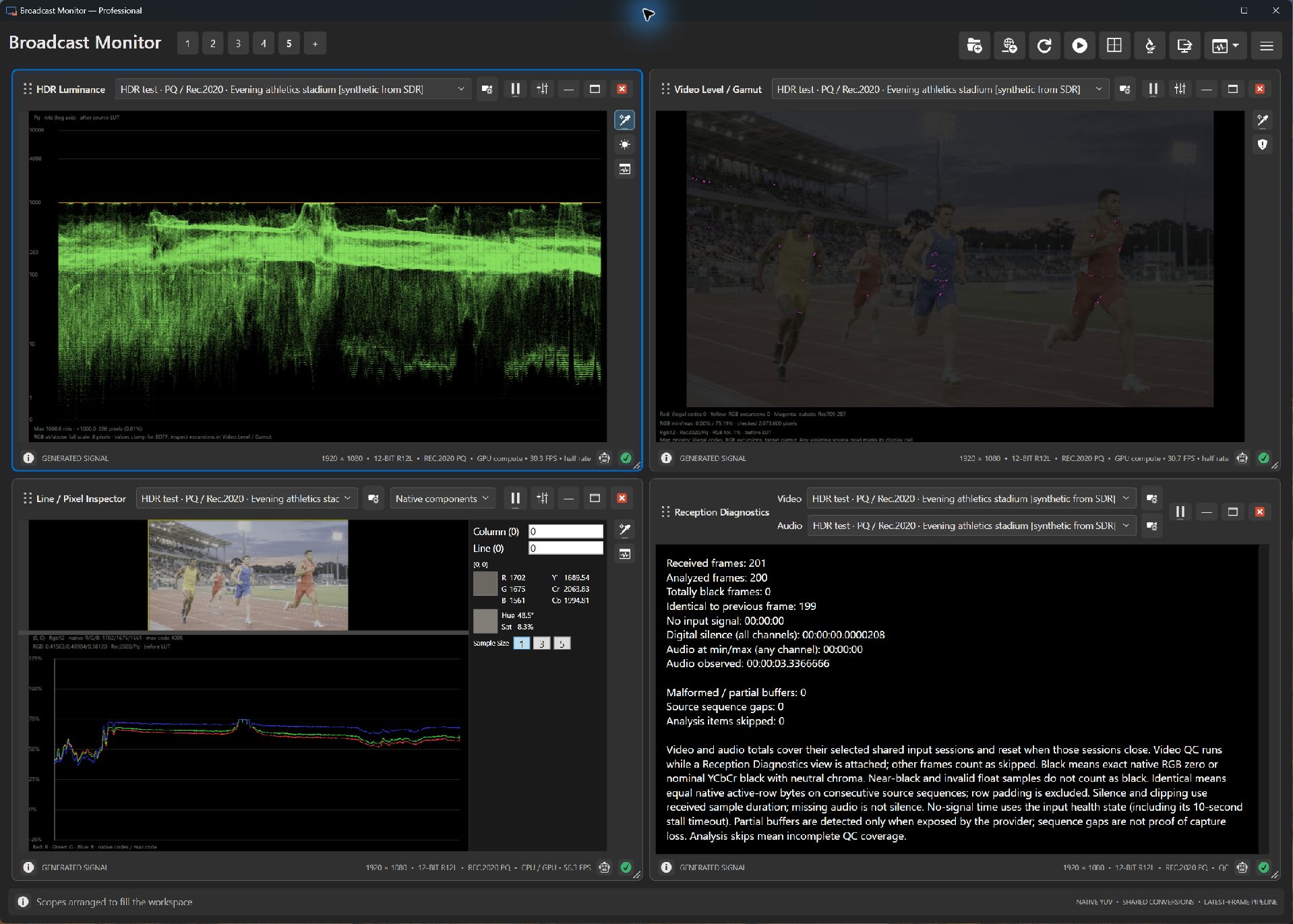
- The upper-right contextual image marks excursions. Read its legend for native-code, RGB-range and gamut categories.
- The colored uniforms and stadium lights provide useful regions to investigate.
- The inspector below supplies native values and a scanline to explain a highlighted region.
Try it yourself.
- Open the sunlit-interior scene beside Picture.
- Choose the intended range and target gamut, then inspect marks and counts.
- Follow a region in Line / Pixel Inspector and check source interpretation.
Useful controls.
- Range and gamut settings define the checks.
- The preview retains spatial context around highlighted samples.
- RGB min/max retains measured values below 0% and above 100%.
Interpret results against the received representation and intended delivery. Decoding, conversion and metadata can affect measured values.