
Scope guide · Signal investigation
Line / Pixel Inspector
Inspect native pixel values and a chosen scanline to investigate a detail precisely.
ProfessionalLearn & Reference / Scope library / Line / Pixel Inspector
What is the exact value at this point?
Add this view from Add scope > Line / Pixel Inspector, then choose the input you want to inspect. Use the pane's i button for its in-app reading guide.
Read this example.
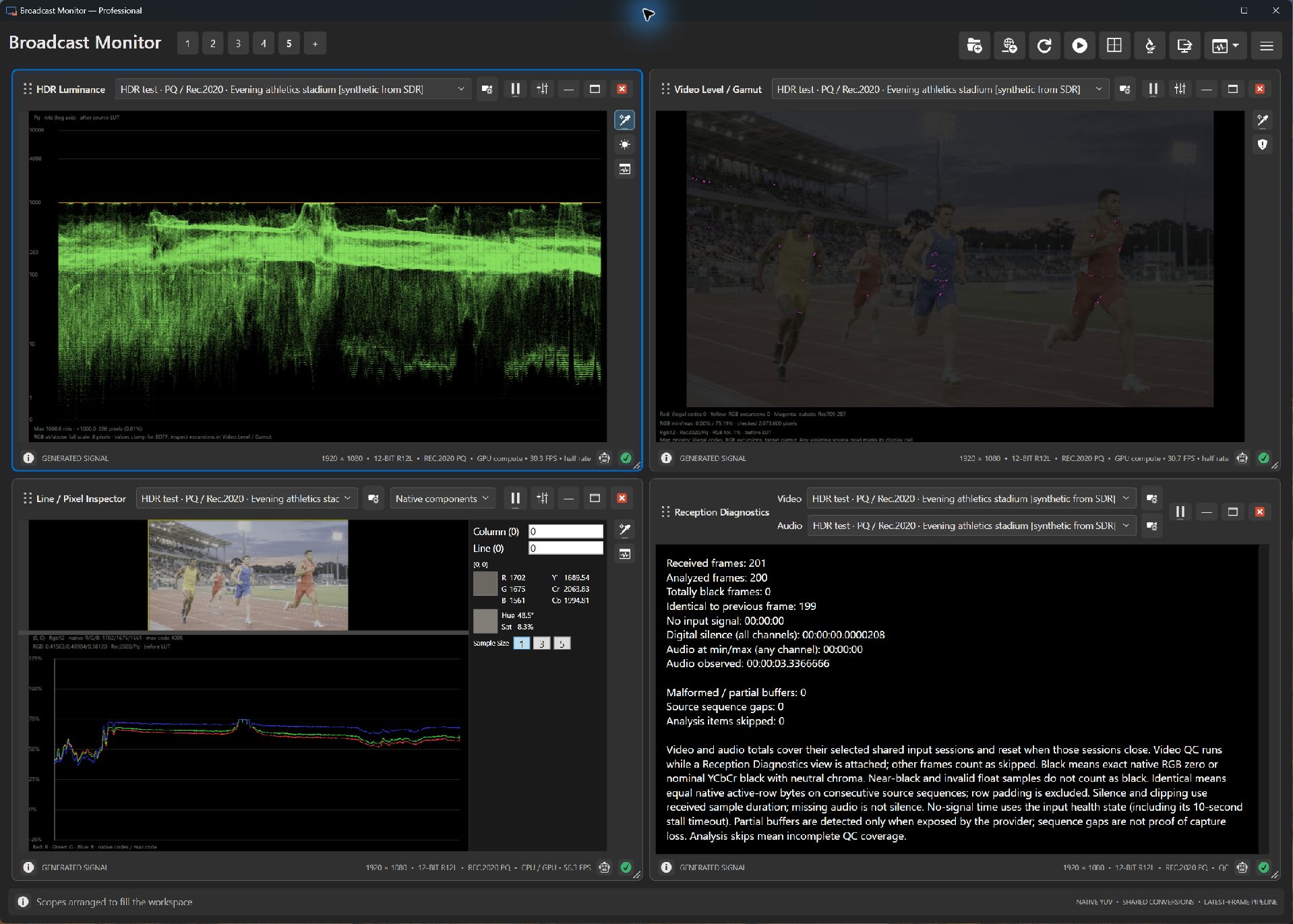
- The small preview locates the inspected position; Column and Line identify native coordinates.
- Component readouts and the swatch describe the position. Sample size changes the averaging footprint.
- The graph follows the selected scanline. Connect changes with picture edges in the stadium preview.
Try it yourself.
- Choose a digital chip-chart or sunlit-interior sample.
- Select a patch interior and compare sample sizes 1, 3 and 5.
- Move across a boundary, watching numeric values and the scanline.
Useful controls.
- Column and Line select the position.
- Component choices select plotted quantities.
- Sample size sets averaging; analysis masks determine included samples.
Use patch interiors for reference comparisons. The full sample neighborhood must be included for an averaged readout.