
Scope guide · Signal investigation
HDR Luminance
Inspect PQ or HLG luminance with the source transfer interpretation and follow highlight levels beside the picture.
ProfessionalLearn & Reference / Scope library / HDR Luminance
Where are the HDR highlights?
Add this view from Add scope > HDR Luminance, then choose the input you want to inspect. Use the pane's i button for its in-app reading guide.
Read this example.
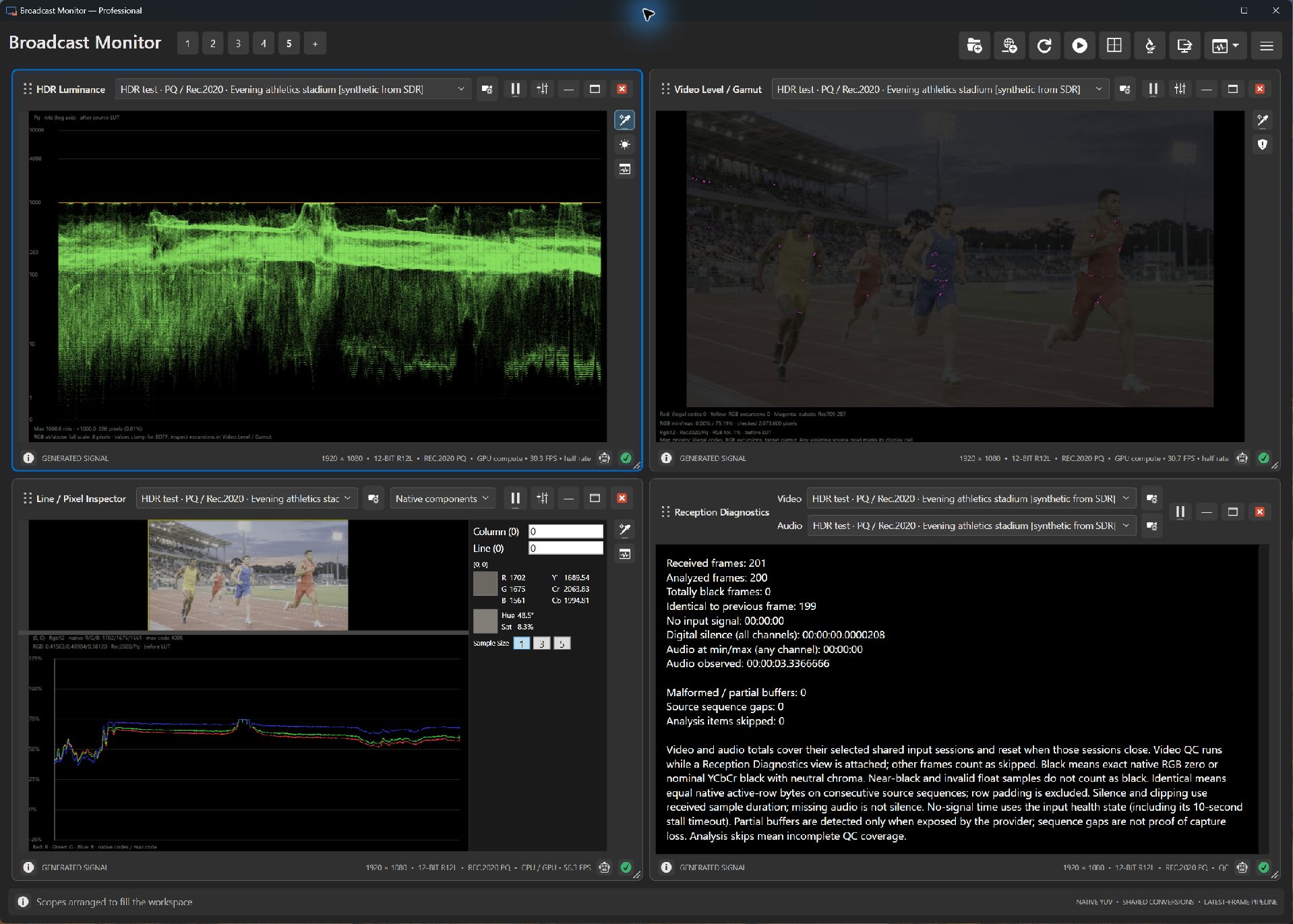
- Read the source transfer interpretation first; this example uses PQ.
- The upper-left vertical scale is logarithmic in nits. The source white maps to about 1000 nits in this synthetic fixture.
- Connect the runners, sky and stadium lights with their horizontal positions in the luminance plot.
Try it yourself.
- Choose a synthetic PQ or HLG sample from Generated > HDR scenes.
- Assign Picture and HDR Luminance to that input.
- Check transfer interpretation and compare highlights with the creative picture.
Useful controls.
- Source transfer and color metadata guide interpretation.
- Display and limit controls support highlight inspection.
- Video Level / Gamut complements luminance with native-level and gamut checks.
HDR photographs are synthetic encodings of SDR originals. Numeric HDR patterns supply known levels; this site shows an SDR capture of the app.