
Scope guide · Color & matching
Vectorscope
Inspect color direction and strength, compare a neutral area, and separate shadows, midtones and highlights.
ExpressProfessionalLearn & Reference / Scope library / Vectorscope
Is the color balance consistent between shots?
Add this view from Add scope > Vectorscope, then choose the input you want to inspect. Use the pane's i button for its in-app reading guide.
Read this example.
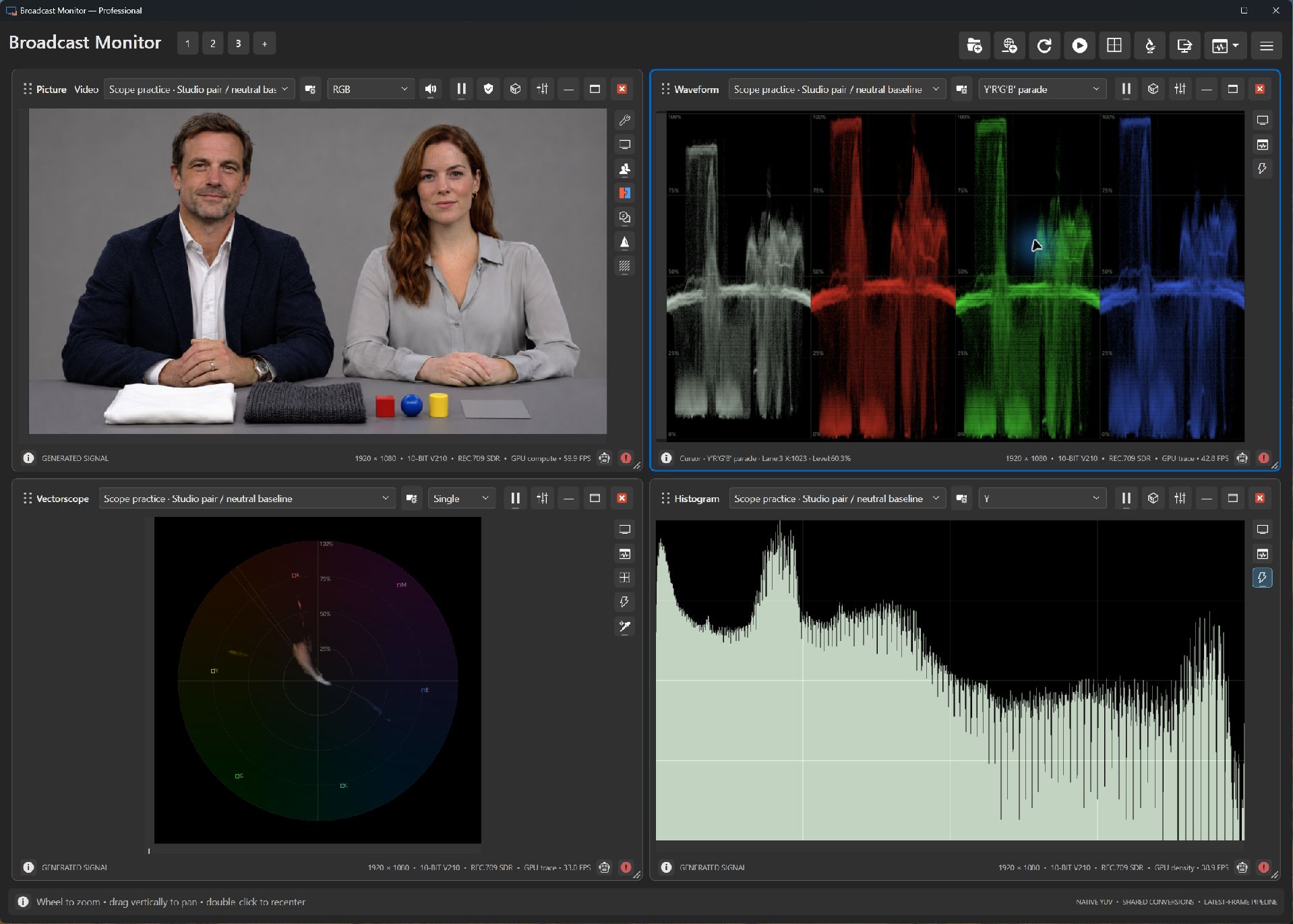
- Content near the center has relatively little chroma. Neutral and low-saturation areas contribute here.
- Traces extending toward targets show stronger components in that direction. Connect skin and colored props with their contributions in Picture.
- A region around one face helps distinguish skin contributions from clothing and colored props.
Try it yourself.
- Select Studio pair / neutral baseline in Picture and Vectorscope.
- Compare Single with tonal Split to inspect shadows, midtones and highlights.
- Choose Cb/Cr or Opponent Chroma. On a known neutral patch, enable White balance guides (D65).
Useful controls.
- Projection offers Cb/Cr, Opponent Chroma and HSV, each defining distance differently.
- Trace, Guides and Performance adjust visibility, targets and sampling.
- Professional shared regions and object selections isolate subjects across supported scopes.
D65 guide labels describe observed cast direction near neutral. Supported SDR Rec.709/Rec.2020 interpretations enable this guide.