
Scope guide · Sound & timing
Clock
Keep local time, UTC, source timecode or playback position visible beside your monitoring views.
FreeExpressProfessionalLearn & Reference / Scope library / Clock
Which time reference does the crew need?
Add this view from Add scope > Clock, then choose the input you want to inspect. Use the pane's i button for its in-app reading guide.
Read this example.
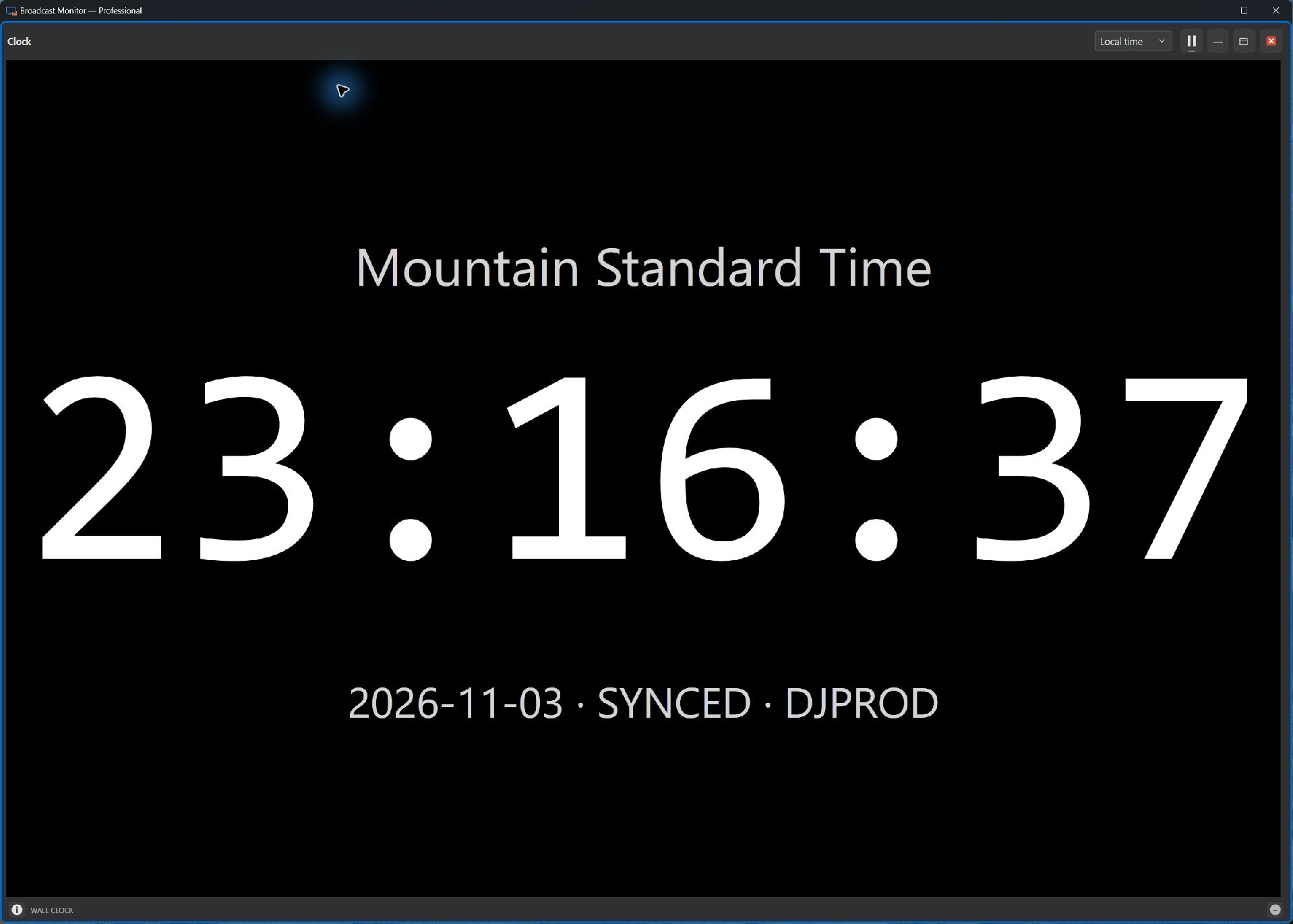
- Read the mode: local time and UTC serve scheduling; source timecode and playback position serve media tasks.
- Give the large readout enough space for the format the crew uses.
- Place a source-connected clock beside its Picture pane to keep timing and content together.
Try it yourself.
- Add Clock and choose the required time mode.
- For source-related modes, select the relevant input.
- Resize and save the workspace to retain the arrangement.
Useful controls.
- Mode selects the time reference.
- Source selection connects media-related modes to the intended input.
- Pane naming and workspace persistence follow common scope controls.
Interpret timecode with the supplied source format and metadata. The mode identifies the reference being displayed.