
Workflow reference
Audio routing & listening
Use the controls and worked examples together. Individual sections identify edition-specific tools.
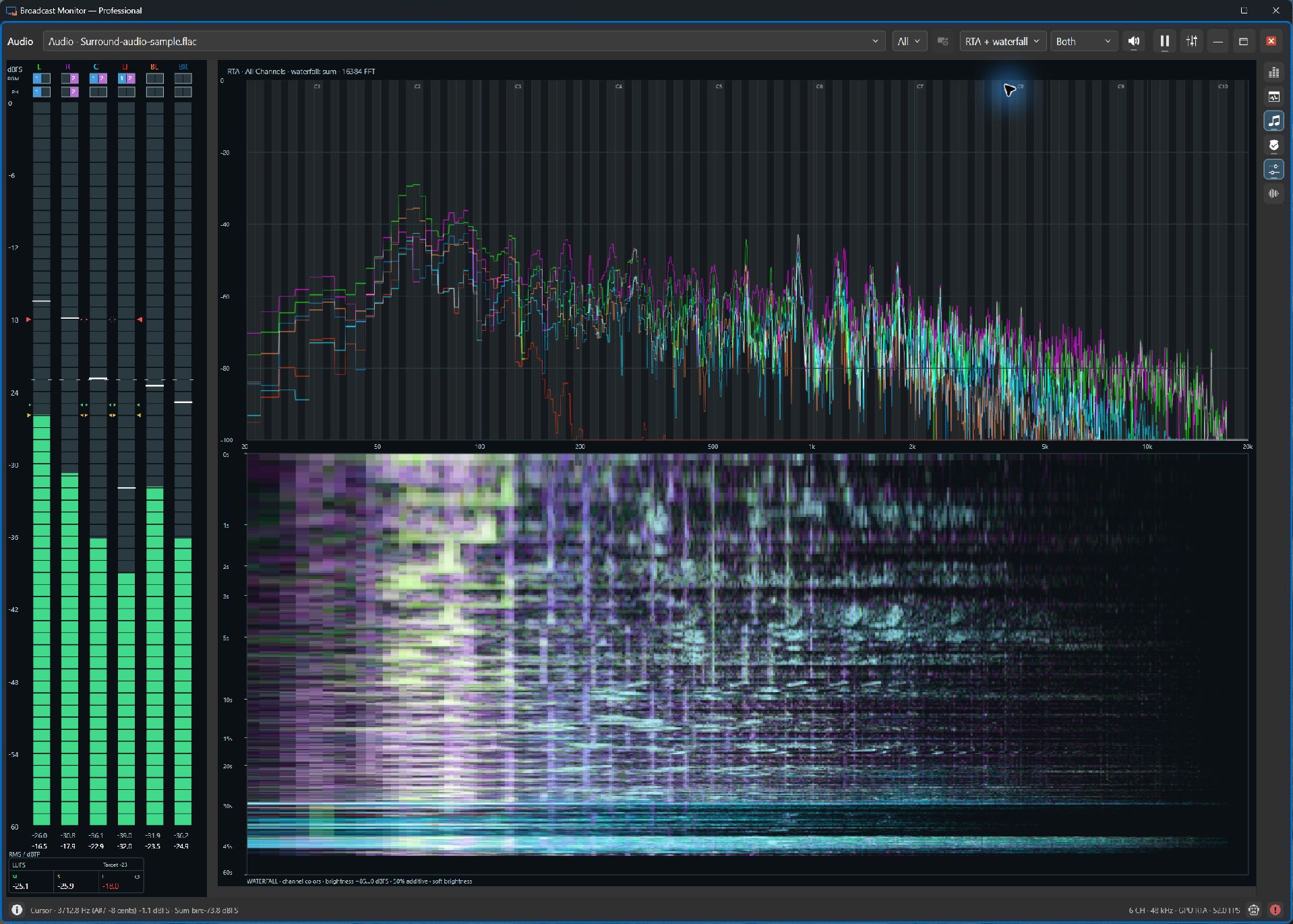
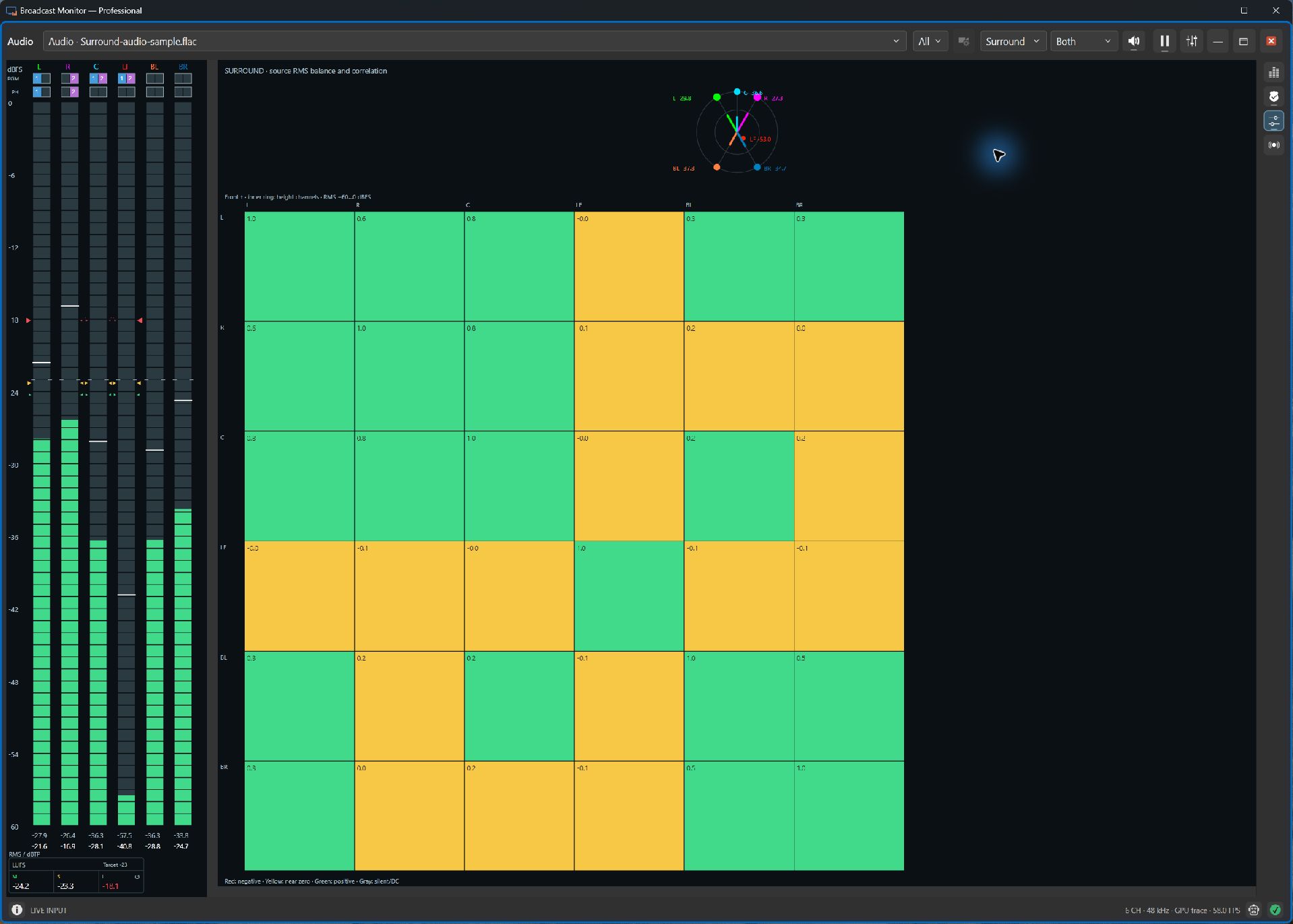
Follow the spectrum of a surround sound sample.
ProfessionalProfessional shows individual source-channel spectra beside a rolling waterfall. The current capture below uses an audio-only 5.1 sample, with no film frames or picture source. Channel colors distinguish contributions; overlapping energy blends those colors. A signal heatmap is also available.
Audio monitoring: see what you should also be hearing.
ExpressProfessionalWhen example songs are bundled, choose a track under Example audio. Choosing one in the Audio scope turns on Listen automatically; use the button to mute it. Rescans and workspace loading do not enable listening. Switching away undoes automatically enabled listening while preserving listening that was already on. Separate audio selectors retain their usual Listen controls. These built-in sources appear only in audio lists, leaving video selections independent. They use the usual playback shortcuts and default loop preference. Express and Professional can use examples with their available audio features; opening your own files requires Professional.
Express and Professional let you route source channels into a stereo listening mix independently of the channels used for phase analysis. Enable Listen to hear that mix through the default Windows playback device. Routing changes take effect without reopening the device, so you can investigate a channel while keeping your monitoring session running.
Above the meters, left-click each channel's separate 1 and 2 boxes in the PGM row for listening and loudness, or in PH for Phase. Right-click opens the scope menu. Hold a colored channel label to solo temporarily, even with Listen off. The rolling source-channel Waveform is independent of PGM routing. Professional RTA All Channels shows individual source traces and an unnormalized summed signal waterfall before PGM routing; other spectrum signal choices follow the PGM buses.
Loudness readings add momentary, short-term, and integrated measurements to the channel-level displays. They help you compare brief changes with the average loudness over longer periods. Professional also adds spectrum and waterfall analysis, plus audio-only file playback for reviewing music, voiceovers, and cues. When sources report speaker roles, channel labels identify positions such as left, right, center, and LFE; unspecified channels remain numbered.
Level meters
Choose Both, Meters Only or Scope Only. In Both, drag the divider to give multichannel meters more room; double-click the divider to restore automatic sizing. Panel layout and split save with workspaces and scope defaults, while listening and routing remain active. During an outer-edge drag, the existing meters and graph hold their displayed values and scale with the pane; live drawing resumes on release. Audio analysis and listening continue. Outputs reusing the pane keep live drawing.
See whether audio is present and how close it gets to the top of the available range. Compare a quiet speaker with a loud musical cue and leave room for unexpected peaks.
Included in Express and Professional.
Stereo phase
Inspect the relationship between the left and right channels. Unusual phase behavior can prompt a mono listening check, where some material may weaken or cancel.
Included in Express and Professional. Always listen as well as watch.
Per-channel audio waveform
See each source channel's changing amplitude across a rolling 20 ms window, independently of your listening mix. Compare channel activity and inspect waveform shape when meters alone do not explain what you hear.
Included in Express and Professional. This is a rolling display without trigger stabilization.
Level and loudness history
Keep up to five minutes of channel levels and momentary, short-term, and integrated loudness in view. The latest 30 seconds have the most space; older history is compressed into the left side of the graph.
Included in Express and Professional. Look back at a quiet introduction or a loud cue to understand a change you just heard. Display suspension leaves gaps in history.
Real-time spectrum analysis
See how audio energy is distributed across frequencies. It can help you investigate a low-frequency rumble or a persistent tonal sound and give you a clearer direction for further listening.
Included in Professional.
Check the channels and their relationships.
ExpressProfessionalFollow every channel, then listen to the cause.
ExpressProfessionalProfessional adds all-channel spectrum traces, multichannel waterfall displays, and Surround analysis. Loudness can be shown per channel with configurable LUFS/LKFS targets. Choose the first N channels or All with the analyzed-channel selector. The quality cards assess only those analyzed channels; excluded channels do not contribute to level, speech, or phase advice. PGM and PH routing remain separate controls. Optional audio-quality cards help investigate clipping, headroom, hum, and quiet-level evidence; these are descriptive guides, so verify concerns by listening.
Supported panes can select audio independently of video. Keep a sample photograph or camera in view while measuring a standalone audio input, an attached source, or Professional audio-file playback.
Move from the overview to the detail.
ExpressProfessionalFocus the Audio pane, then use Alt+1–9 to select an available toolbar display in order. Express offers Phase, Waveform, and Level history; Professional also includes RTA + waterfall and Surround. The order therefore depends on your edition.
Hold numpad 1–9 to magnify a region of the graph while keeping channel meters visible. Release to restore your view. Over the graph, Alt+wheel cycles displays; in Phase, the wheel changes magnification, Shift+wheel adjusts intensity, and Ctrl+Shift+wheel adjusts persistence. Ctrl+wheel adjusts trace width in supported modes.
Use Ctrl+Tab to move to the next pane. See the shared inspection shortcuts.
For temporary region inspection, regular-keyboard 789 / UIO / JKL mirrors the numpad grid. Shift and Ctrl apply temporary graph contrast; hold W for uniform white traces in Phase/Waveform. Meters remain visible while inspecting the graph.